In today’s fast-paced digital world, short-form video content is no longer optional — it’s essential. Whether you’re a teacher creating educational Reels or a content creator growing your YouTube Shorts channel, having the right tools and techniques can save you hours and increase your reach.
One such tool is OBS Studio (Open Broadcaster Software) — a free, open-source software widely used for video recording and live streaming. But there’s a catch: OBS doesn’t natively support vertical (portrait) video recording, which is the standard for Shorts, Reels, and TikTok.
So how do you record high-quality short videos using OBS?
This blog explains two effective methods:
- A manual resolution “jugaad” (workaround) inside OBS
- A more powerful solution using the Aitum Vertical Plugin
And we’ll also share how teachers can learn OBS through a structured, education-specific Udemy course by Smart Infovision.

Why Short Videos Are Critical for Growth
Short-form video is the biggest driver of growth on YouTube and Instagram today. Channels that crossed 1 million+ subscribers in the last 3 years did it primarily through Shorts.
And it’s no different for educators:
- Short videos build visibility.
- They boost engagement on platforms like YouTube, Instagram, and Facebook.
- Students prefer concise, focused content.
If you’re a teacher or trainer, mastering vertical video creation in OBS gives you a major edge.
Method 1: The Internal OBS “Jugaad” Method for Shorts
Step-by-Step Instructions:
1. Create a New Profile for Shorts
- In OBS, go to Profile > New.
- Name it something like “Shorts Recording”.
- This keeps your short video settings separate from your regular long-form setup.
2. Adjust the Video Resolution to Portrait Format
- Go to Settings > Video.
- Change both the Base (Canvas) Resolution and Output (Scaled) Resolution from
1920x1080to1080x1920. - This flips your canvas to vertical (portrait mode).
- Click Apply and return to the main screen — your canvas is now vertical.
3. Set Up a “Shorts Scene”
- Create a new scene.
- Add your video capture device (camera).
- Position and resize it to fit the portrait format.
- You can zoom or crop depending on the camera (ideal if you have a PTZ or webcam with zoom).
4. Add Mic, Text, or Branding
- Add your microphone (audio input).
- Optionally add logo overlays or captions.
- This makes the video ready for direct upload.
5. Record and Revert Easily
- Hit Start Recording.
- After you’re done, just switch back to your main profile to return to your horizontal (landscape) setup.
This method is fast and free but requires you to keep switching profiles.
Method 2: Use the Aitum Vertical Plugin (The Smart Way)
If you’re serious about short video creation, the Aitum Vertical Plugin for OBS is a game-changer.
What Is Aitum Vertical Plugin?
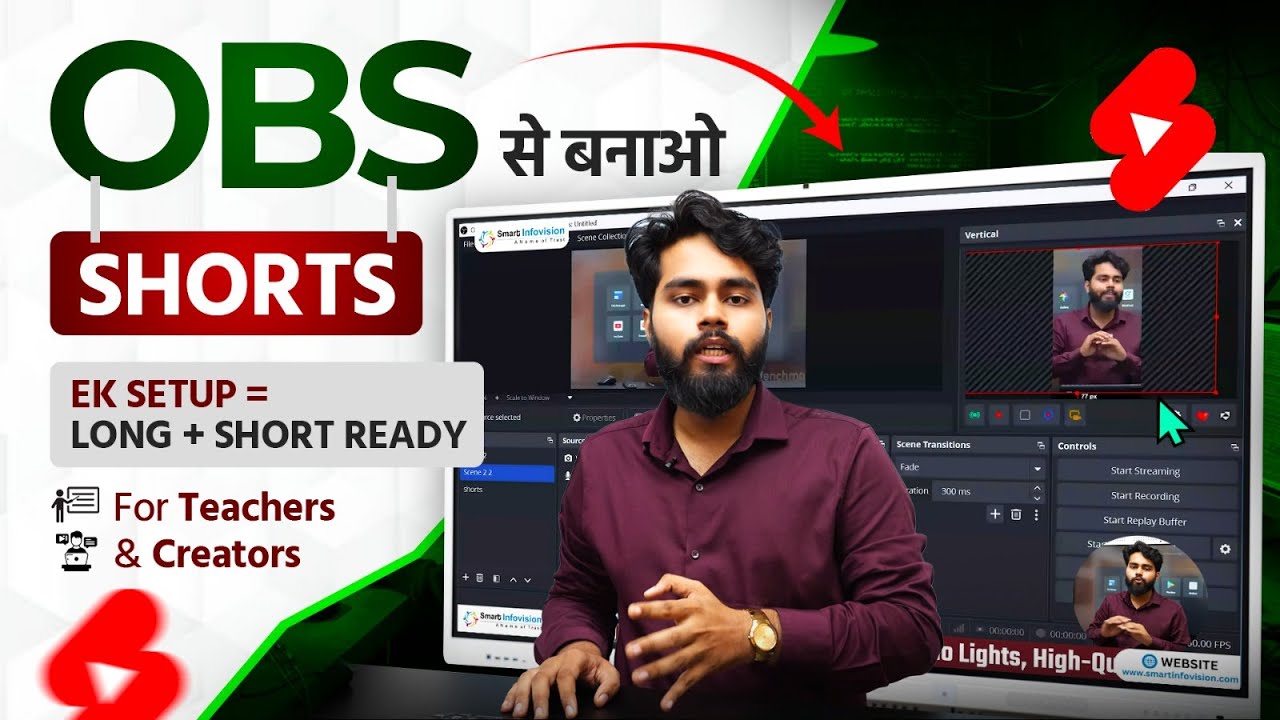
A free plugin that adds a dedicated vertical video panel inside OBS, allowing simultaneous horizontal and vertical recordings.
How to Install It:
- Search for “Aitum OBS Vertical Plugin” on Google.
- Download and close OBS before installation.
- After installation, reopen OBS and you’ll see a new Vertical Panel/Dock.
Key Features:
1. Built-In Vertical Canvas
- No need to change your main settings.
- A separate vertical window appears in OBS.
- Add your camera and layout just like in the main window.
2. Dual Recording Buttons
- OBS now has two Start Recording buttons:
- One for your long-form content (landscape)
- One for your short-form content (portrait)
You can record both simultaneously, which saves a ton of time and avoids extra editing.
3. Flexible Docking
- The Vertical Panel can be removed or hidden anytime from the OBS Docks menu.
- This keeps your workspace clean and customizable.
Why This Matters for Teachers and Educators
Smart boards. PTZ cameras. YouTube teaching. Every teacher entering the digital space needs to:
- Create shorts to build their audience.
- Record explainer videos, tips, and student FAQs.
- Add professional overlays and clean audio.
But most OBS tutorials online are scattered, technical, and not made for teachers.
Learn OBS the Right Way: OBS Course for Teachers by Smart Infovision
To bridge this gap, Smart Infovision launched a specialized course titled:
📘 “OBS Studio for Beginner to Advanced – Made for Teachers”
What’s Inside:
- Full OBS setup from scratch
- Scenes, profiles, sources, transitions
- Adding logos, lower thirds, and text
- Creating both long-form and short-form videos
- Camera + microphone integration
- Bonus: Using OBS with digital boards and PTZ cameras
Why It’s Unique:
- Designed only for teachers
- Not bloated with irrelevant info for gamers/streamers
- Uses real classroom scenarios
- Step-by-step visual explanation
Ratings:
⭐️⭐️⭐️⭐️⭐️ (5 stars)
👩🏫 51+ teachers enrolled (and growing)
Bonus: Optimize OBS Recordings
Once your short video setup is ready, remember to tweak these settings:
- Output > Recording > Bitrate: Set it to 8000–12000 kbps for clear video.
- Recording Format: Use
.mp4for YouTube compatibility. - Save Location: Set a dedicated folder under Settings > Output > Recording.
Final Thoughts
If you’re a teacher, trainer, or educator building your online brand — recording vertical short videos in OBS is no longer optional. It’s a superpower for content growth.
You can either:
- Use the manual OBS “jugaad” method, or
- Go pro with the Aitum Vertical Plugin.
Either way, you’ll create content faster, smarter, and with higher impact.
And if you’re just starting out with OBS, the Smart Infovision course on Udemy gives you a complete roadmap designed specifically for the education sector.